Manage Time Card
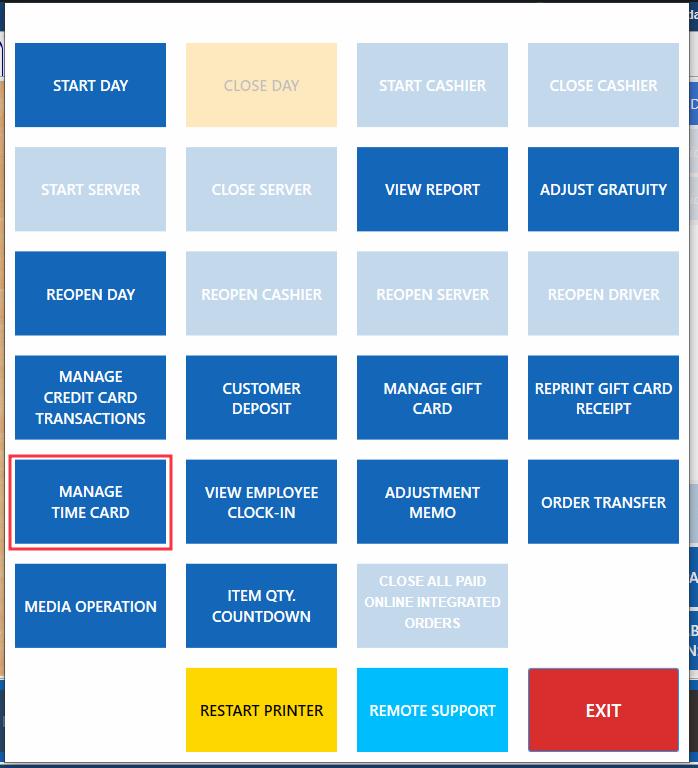
To access manage time card page, log in on the POS, then click MORE >>> MANAGE TIME CARD
You can also log in to cloud dashboard and choose Employee Schedule >>> Manage Time Card

How To Add Time Cards
Time card is automatically added when an employee with a schedule on the day started clock in. Adding time card manually is recommended only when it’s necessary such as the employee forgets to clock in but already started working.
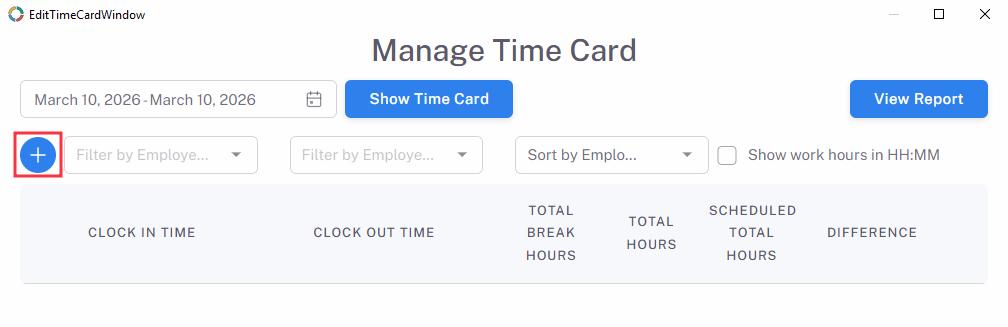
- On Manage Time Card page, click “+” button
- Fill the following parameters:
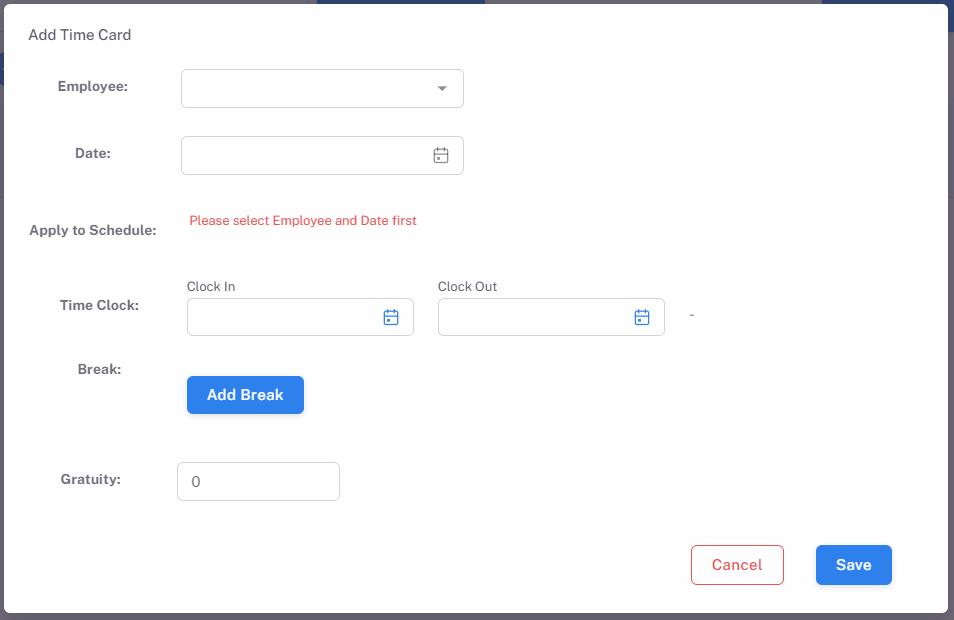
– Employee: Must select an employee
– Date: Must select a date
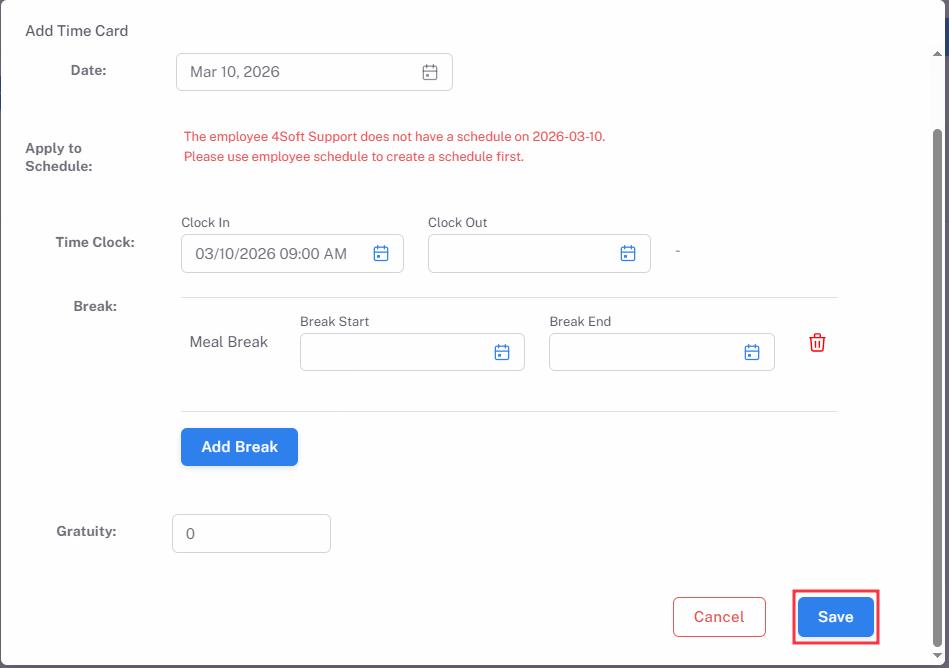
– Apply to Schedule: You may see the warning “The employee … does not have a schedule on yyyy-mm-dd.
Please use employee schedule to create a schedule first.” While it is recommended to associate the time card with a schedule, you may proceed without creating a schedule.
– Time Clock: Must set Clock In time, Clock Out time can be blank in case the employee will perform clock out on the POS later.
– Break: You may add breaks for the employee and leave Break Start and/or Break End blank if employee will start/end the break on the POS later.
– Gratuity: Optional declared gratuity. Does not affect or related to gratuity found in daily close or server reports. - Click Save button to save the time card.
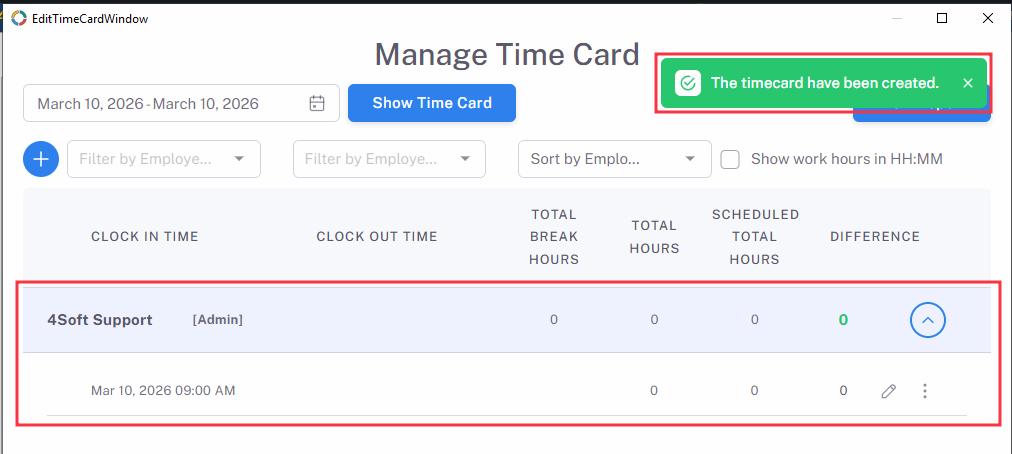
How To Edit Time Cards
- Click the drop down icon on an employee name, then click the pencil icon.
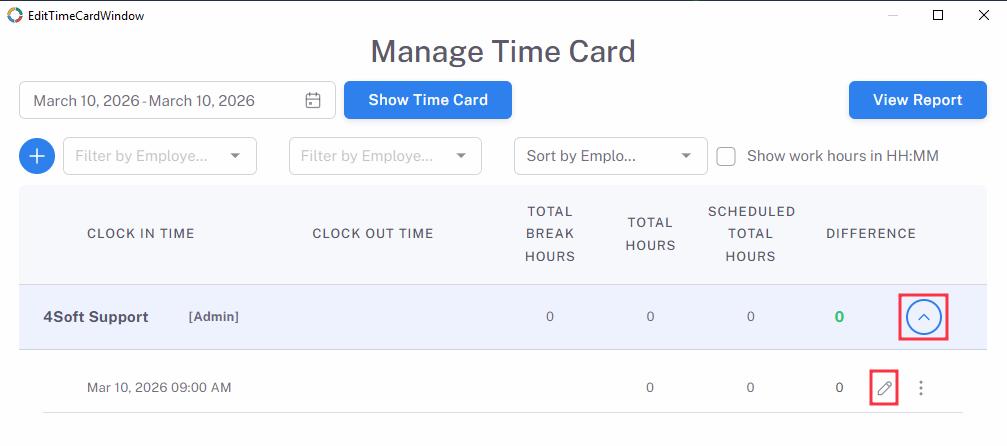
- You can edit the following:
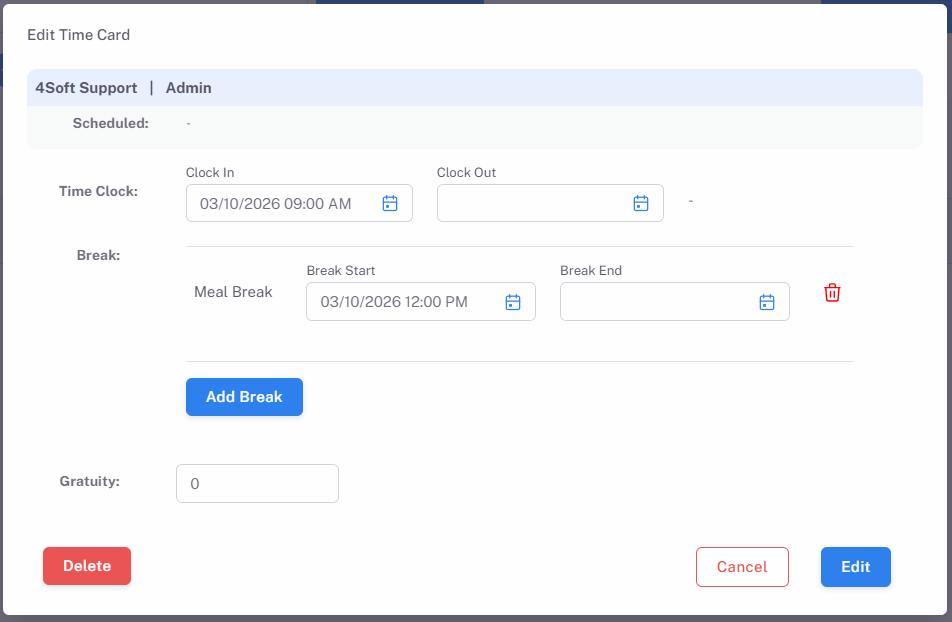
– Time Clock: Clock In/Clock Out (not allowed to be blank if previously not blank)
– Break: Break Start/Break End (not allowed to be blank if previously not blank), and also add/delete breaks
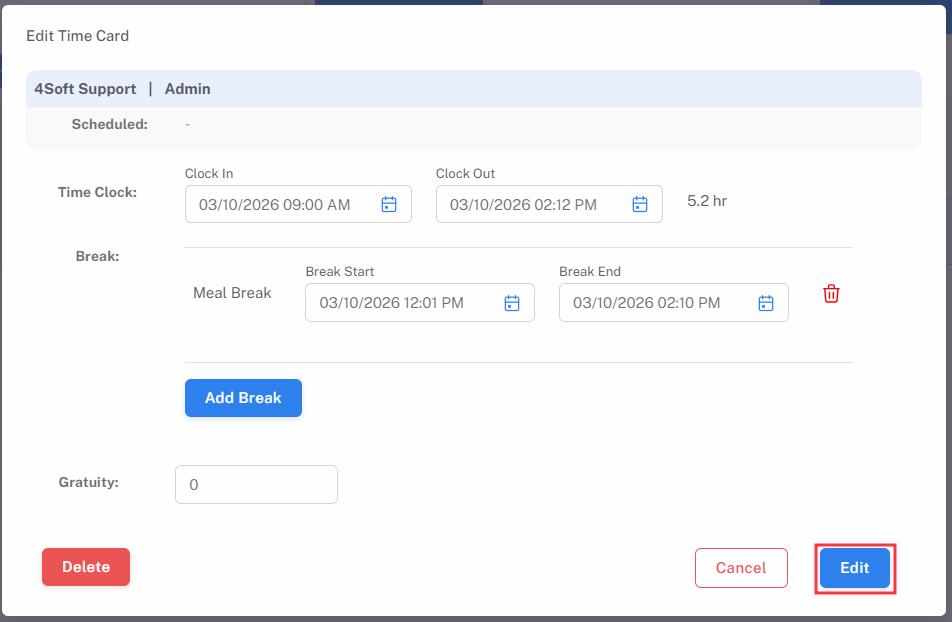
– Gratuity: Declared gratuity. Does not affect or related to gratuity found in daily close or server reports. - Click Edit to save the time card
How To Remove Time Cards
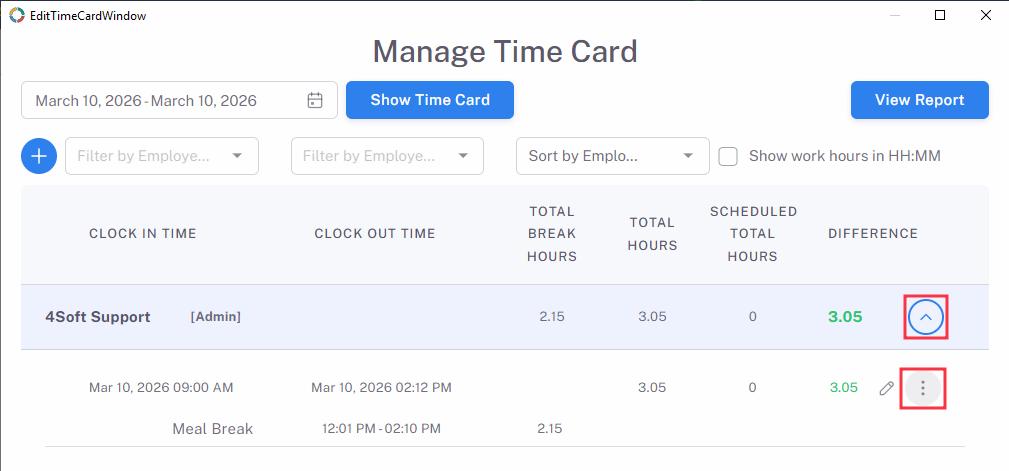
- Click the drop down icon on an employee name, then click the 3-dot icon.
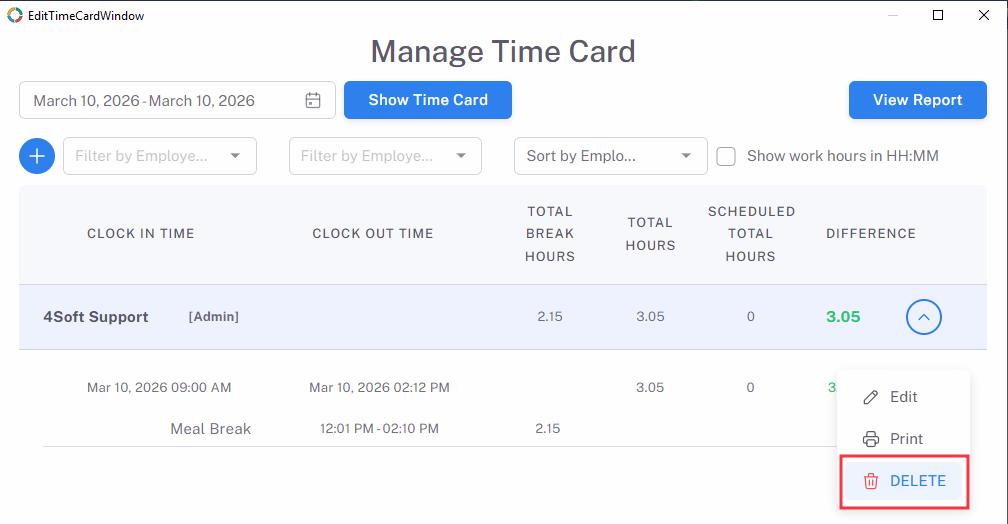
- Select Delete.
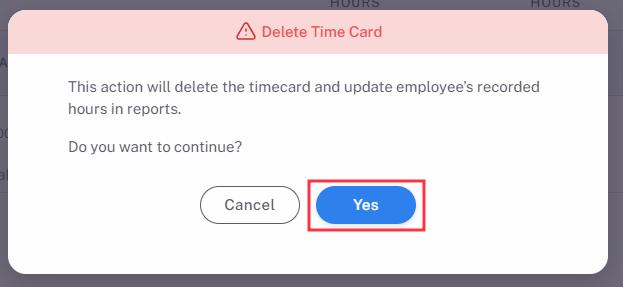
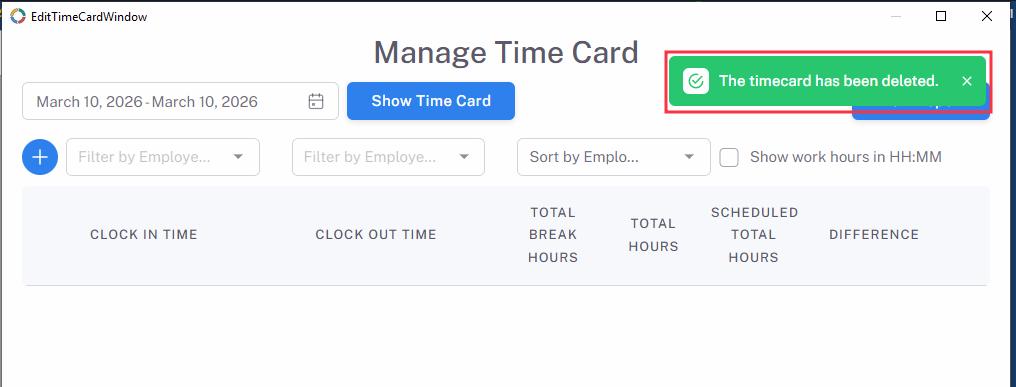
- Select Yes on the warning message to continue, then the time card will be removed.
Note: Once the time card is removed, it cannot be recovered. Please be cautious when removing time cards.