- Go to the Employee Schedule page. The page is accessible through mycloudreport.com or dashboard.intellisoftoncloud.com or through the POS.
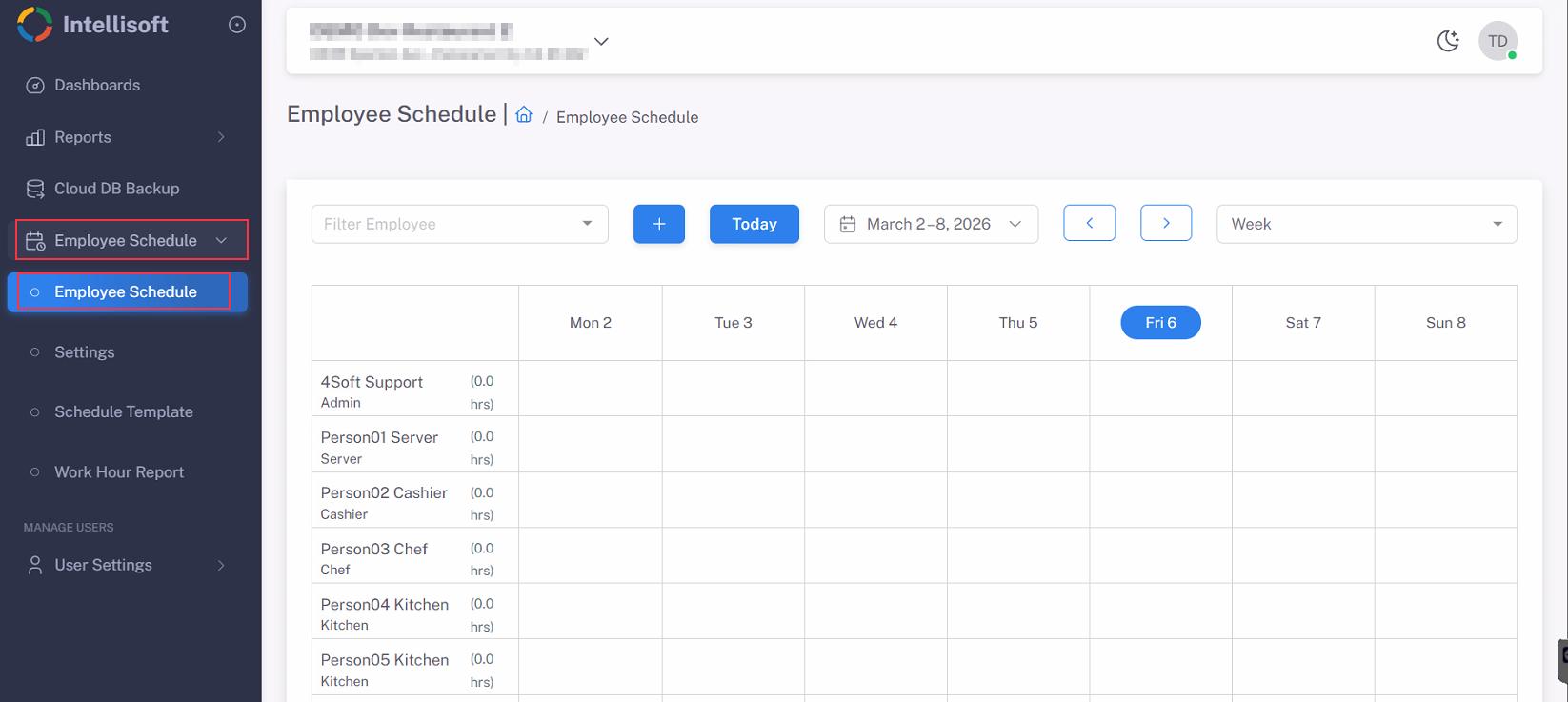
Employee Schedule on cloud portal web. 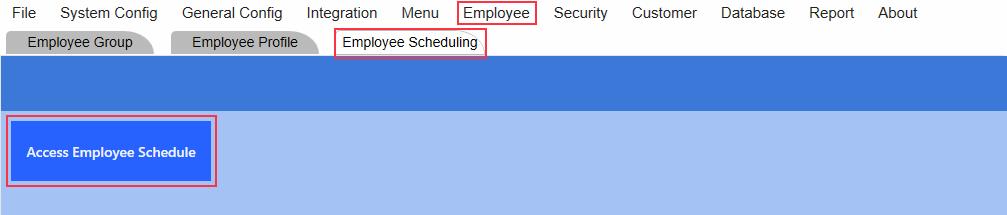
Employee Schedule in POS Back Office. - Click on “+” button to bring up Add Schedule window.
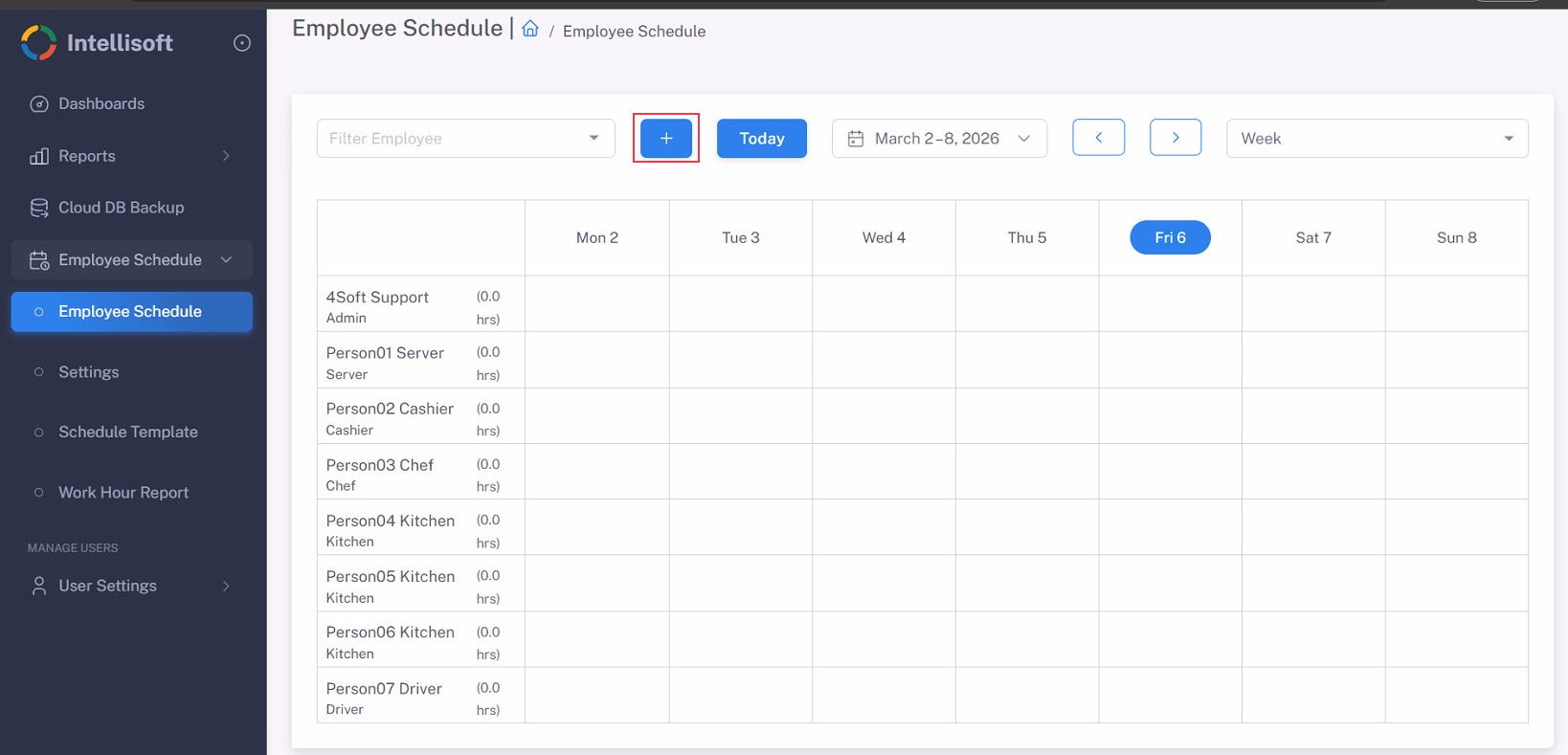
- Select and choose the followings to suit the needs:
– Employee Name
– Schedule Date
– Time Start, Time End
– Break (Must setup Break Templates first)
– Display Color
– Schedule Repeat Option
– Schedule Note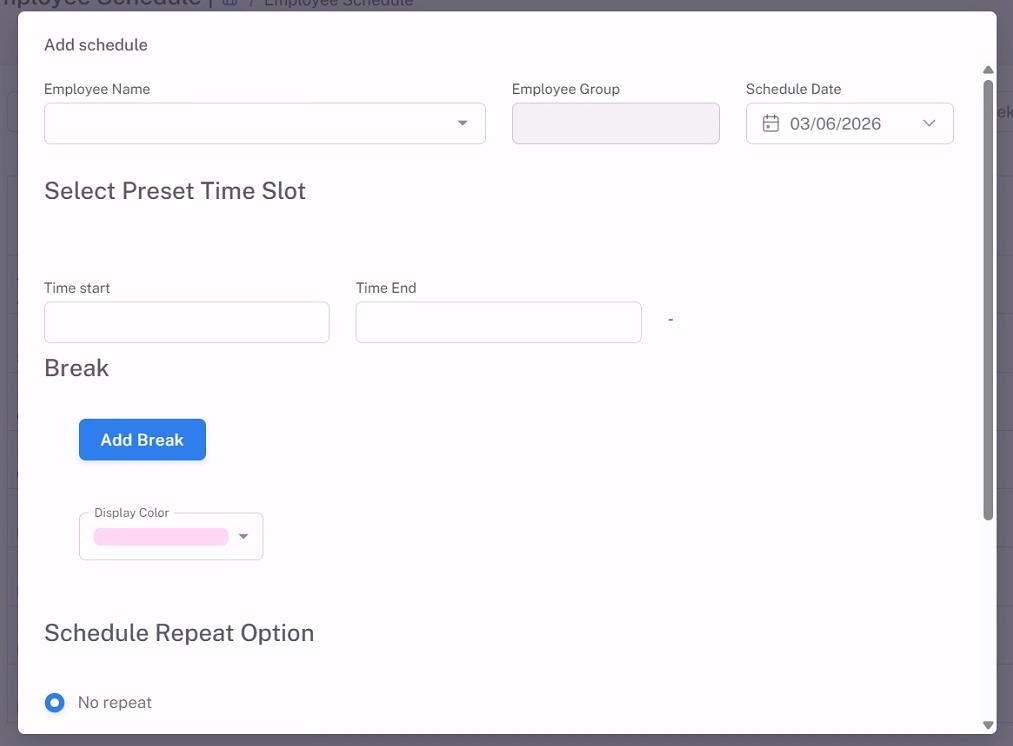
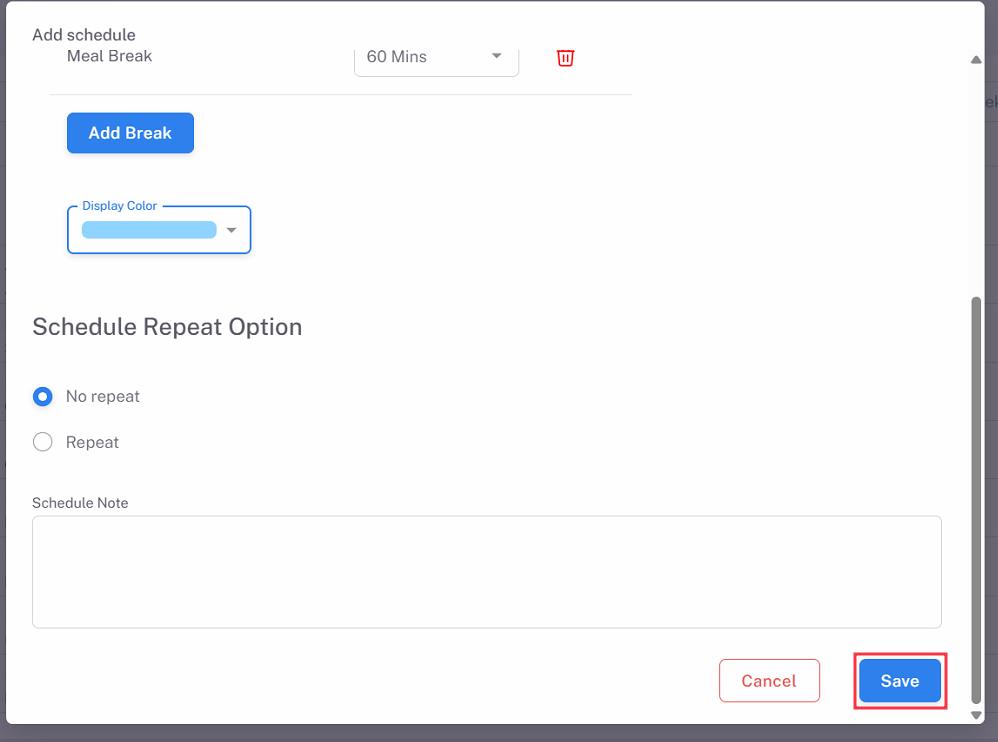
- Click Save to add the schedule to calendar.
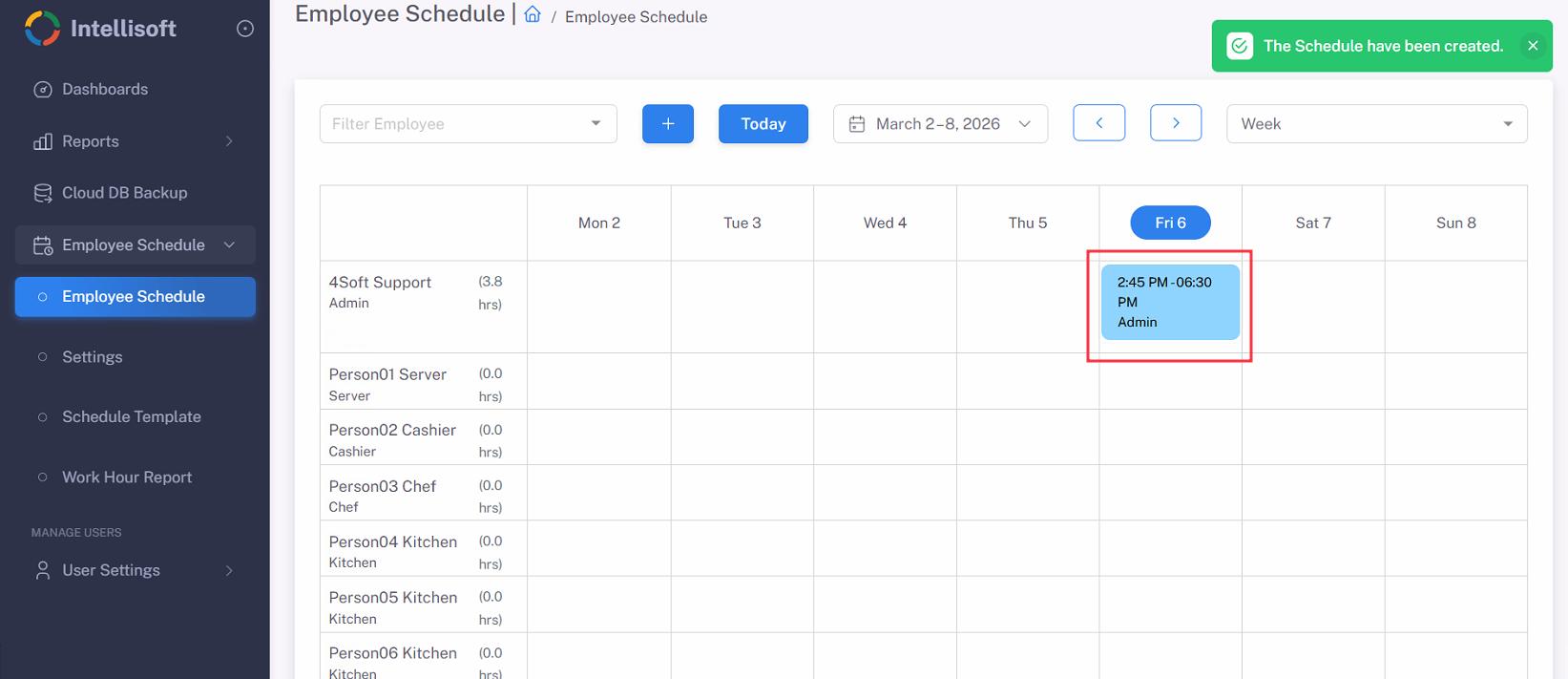
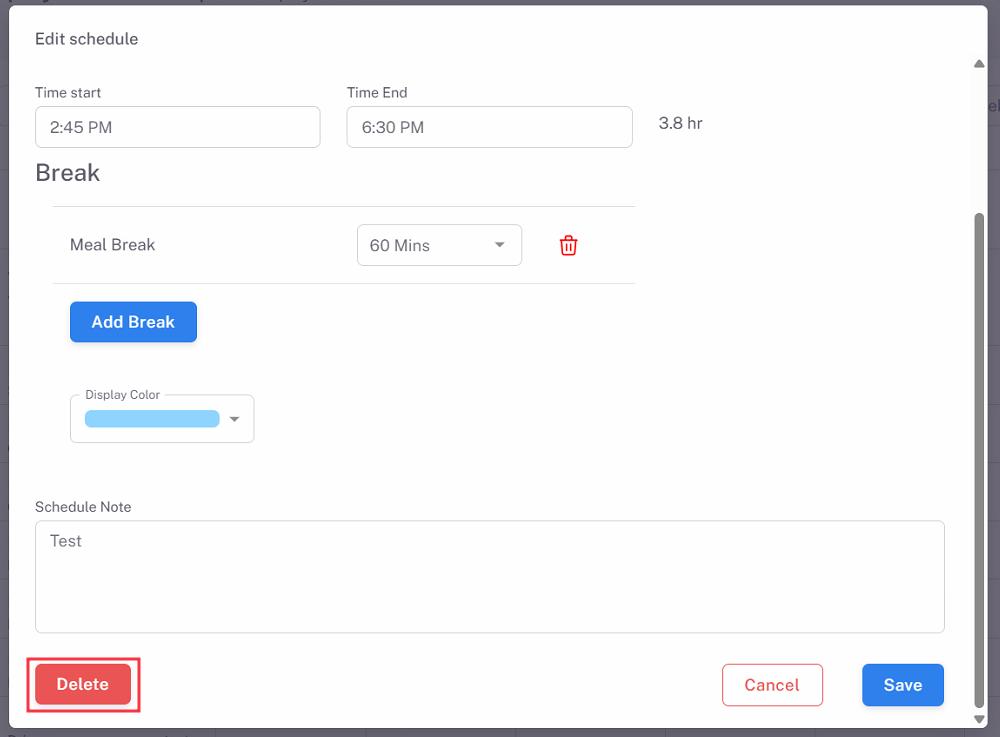
- On the Employee Schedule page, click on a schedule.
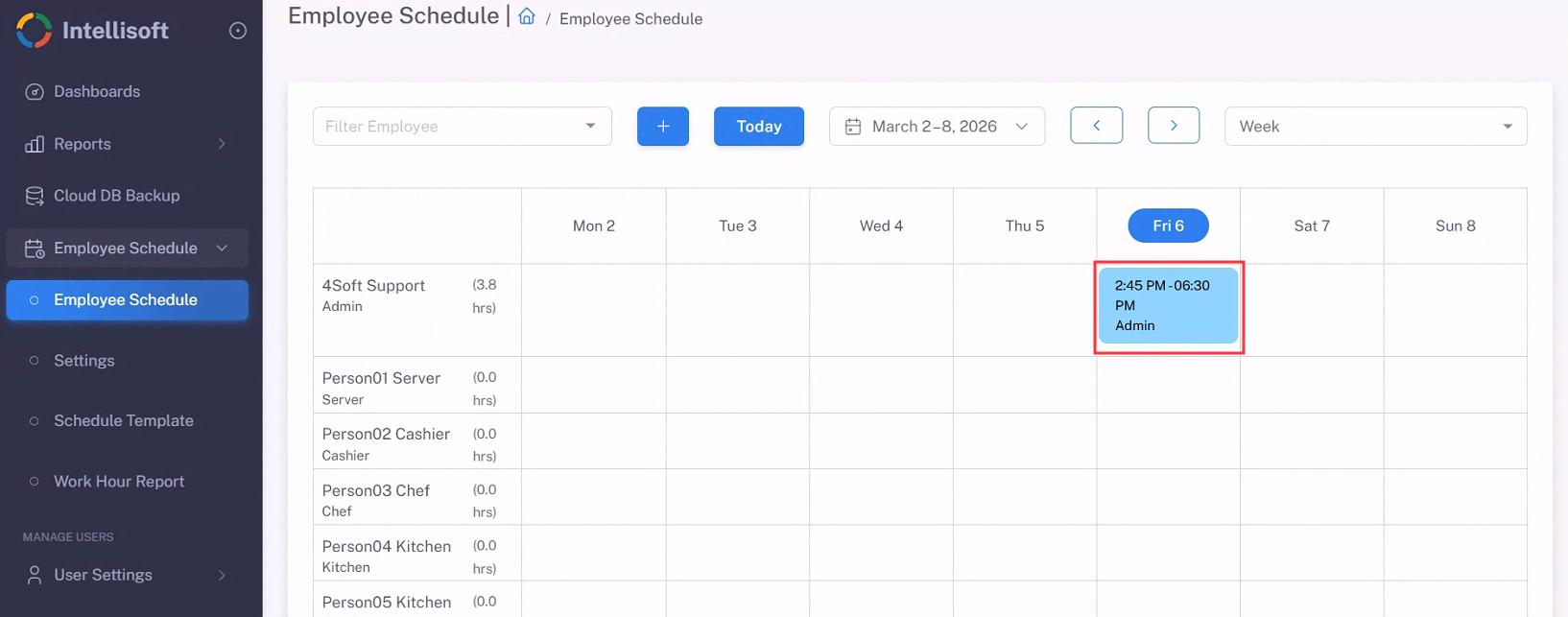
- Edit to suit the needs, then click Save.
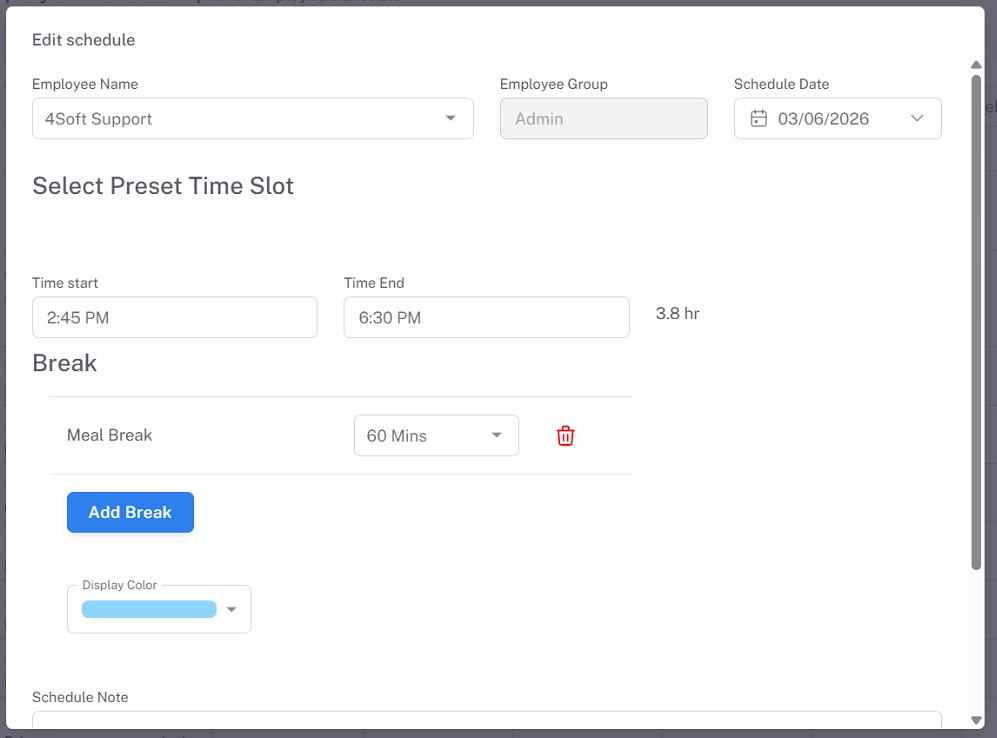
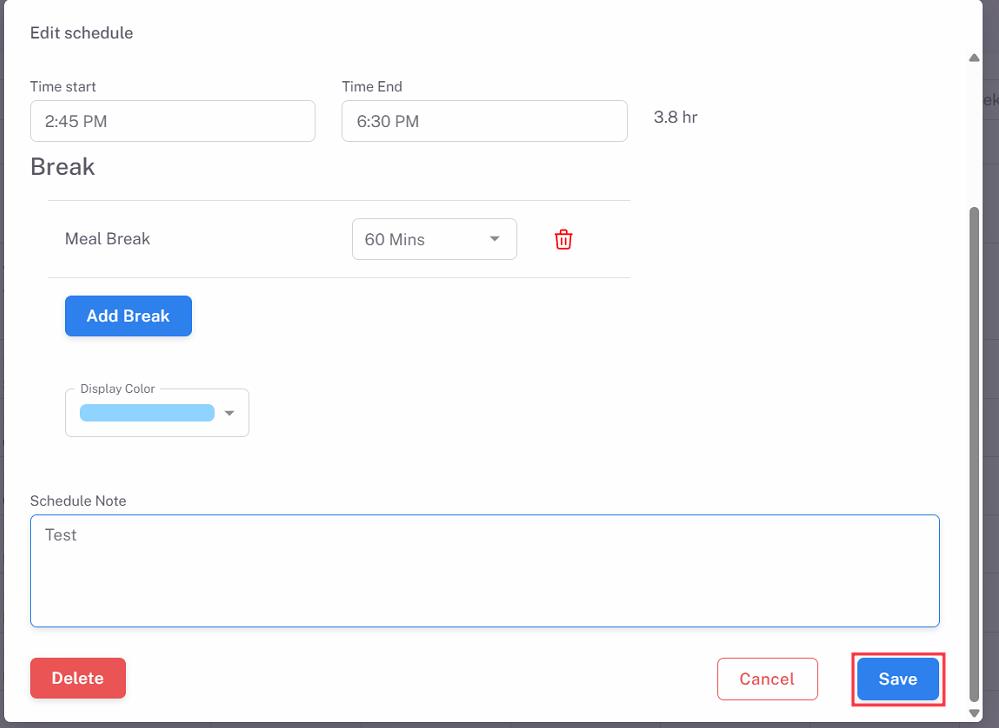
- On the Employee Schedule page, click on a schedule.
- Click Delete.
Note: A schedule with time card(the employee already clocked in for the schedule) will not be able to remove.