To access Break Settings, go to Employee Schedule Settings page. The page is accessible through mycloudreport.com or dashboard.intellisoftoncloud.com or through the POS.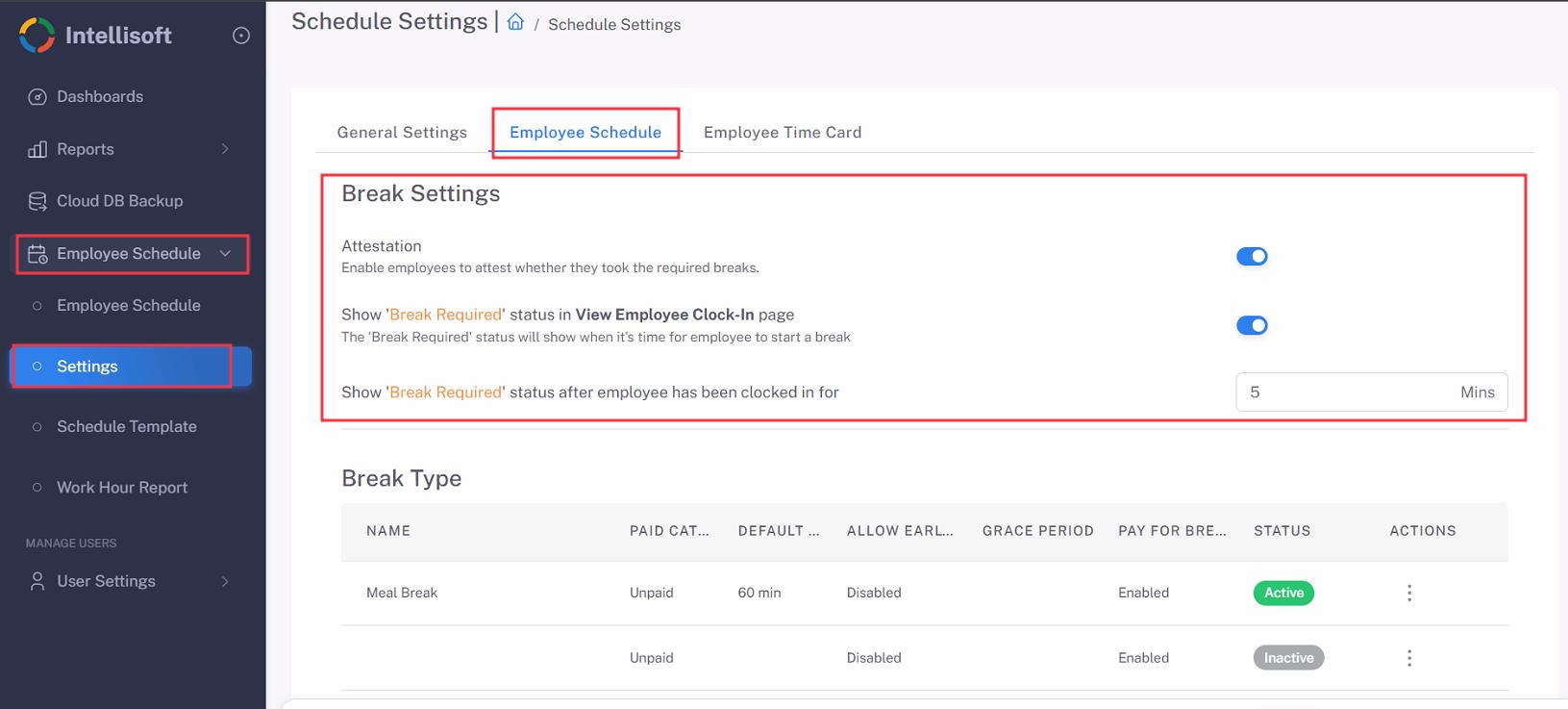
Show “Break Required” status in View Employee Clock-In page
ON: Display the message on the page when the condition is met.
OFF: Not display the message on the page.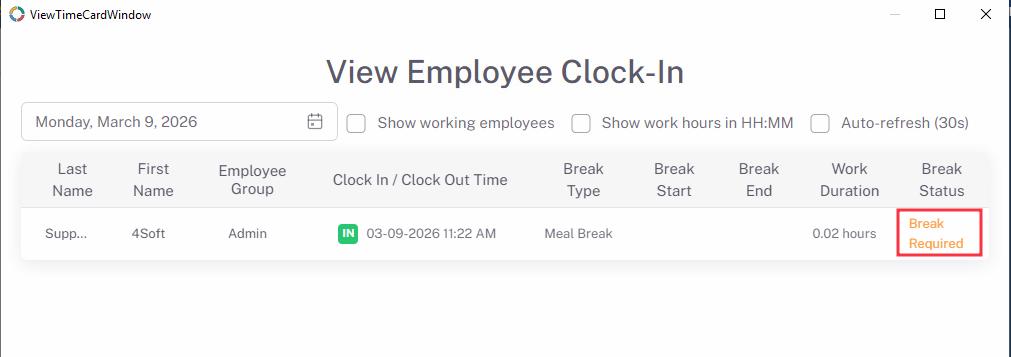
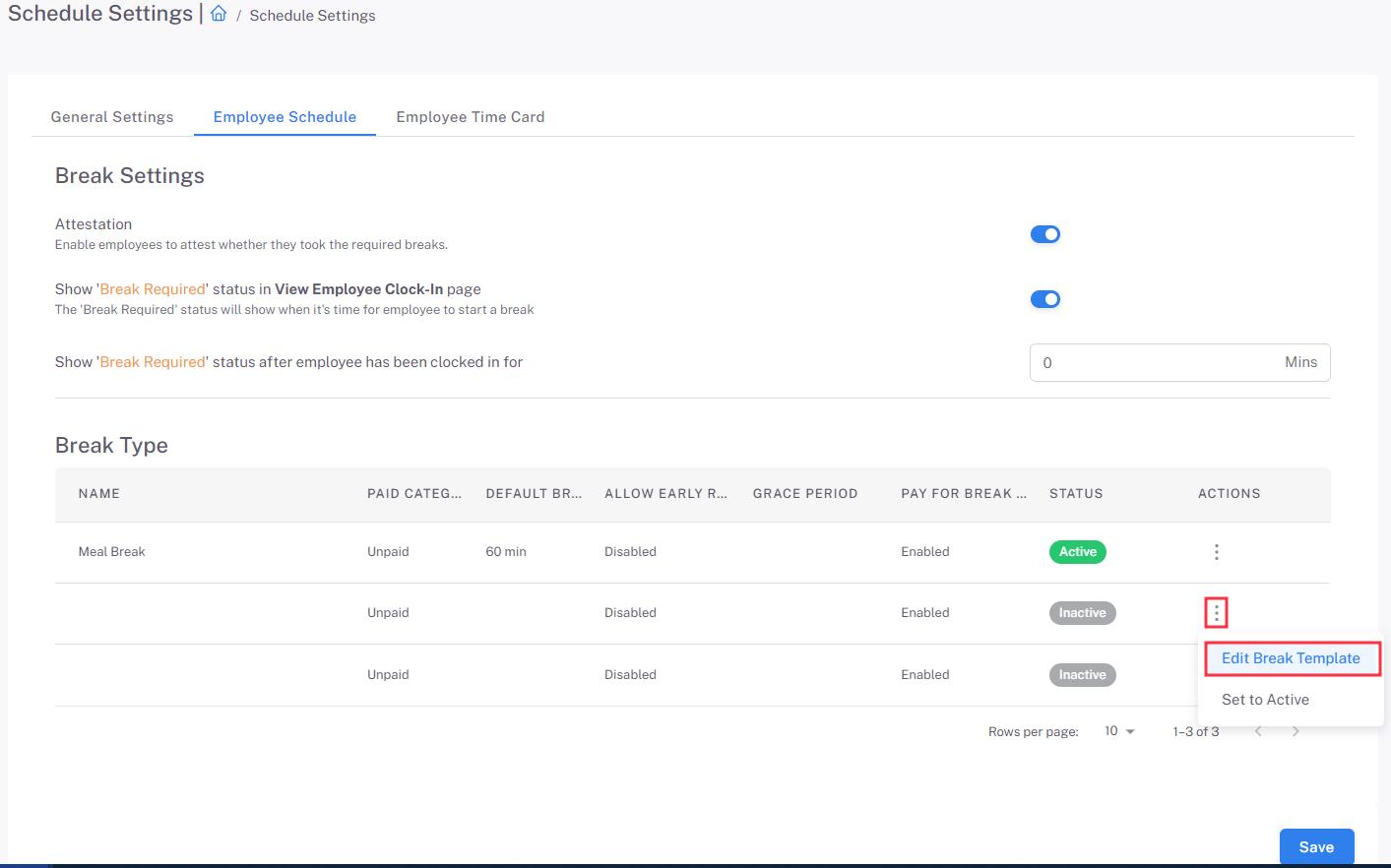
Break Type (Break Template)
- Click the 3 dots icon, then select Edit Break Template.
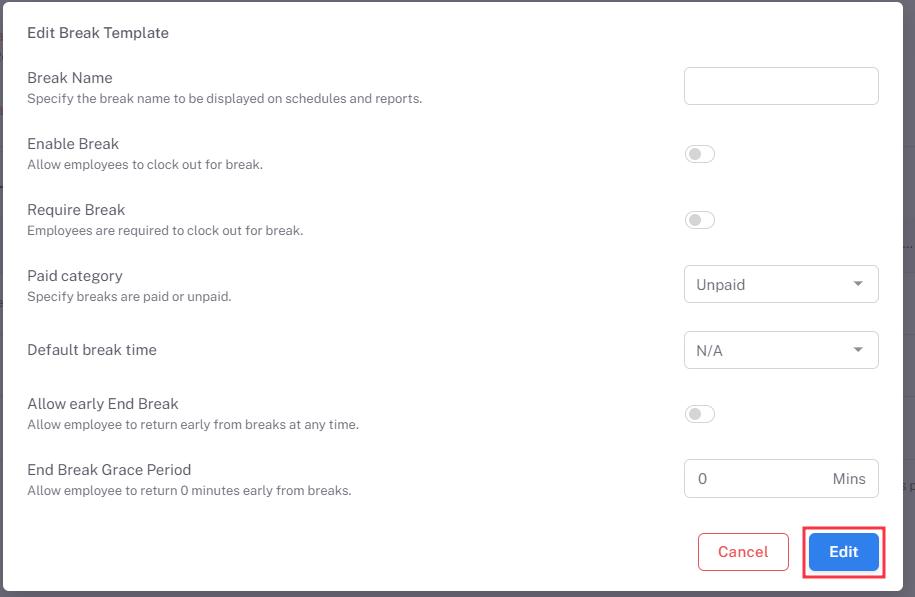
- Set the following parameters to suit the needs:
– Break Name
– Enable Break: ON == can be added to a schedule; OFF == not appear in Break list when adding a break to the schedule
– Require Break: ON == cannot clock out without completing break attestation, if enabled; OFF == can clock out whether or not the break has been taken
– Paid category: Unpaid == break time is not added to the working hour; Paid == break time is added to the working hour
– Default break time
– Allow early End Break: ON == enables employees to end their break before its full duration; OFF == prevents ending a break before its full duration
– End Break Grace Period: allows employees to end their break when specified minutes left before its full duration Note: This option is available on when Allow early End Break is OFF - Click Edit to save the break setting.